Alright 👌 if youve got a Smart TV and you want to stream movies, live TV, IPTV, or apps without confusion youre in the right place.
In this Smart TV Streaming Guide, Im going to walk you through everything in simple, friendly English.
No tech overload.
No complicated jargon.
Just real, practical steps.
By the end of this guide, youll know:
- How to set up streaming on any Smart TV
- How to install apps
- How to stream IPTV
- How to fix buffering
- How to improve performance
- How to keep your streaming secure
Lets turn your TV into a streaming machine 🚀
What Is a Smart TV?
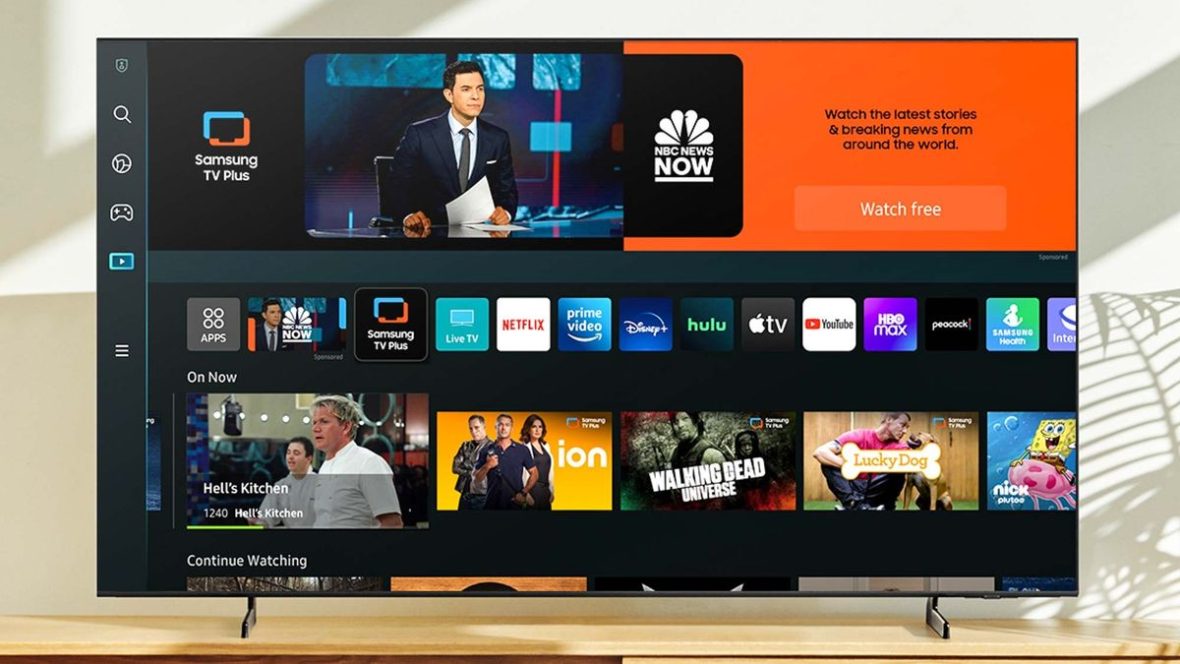
A Smart TV is basically a television with built in internet features.
Instead of needing:
- Cable box
- Satellite receiver
- External streaming device
Your TV can install apps and stream directly using Wi-Fi.
Most Smart TVs today run on:
- Android TV / Google TV
- Samsung Tizen OS
- LG webOS
- Roku TV
- Fire TV OS
Each system looks different but the basics are very similar.
Why Smart TV Streaming Is So Popular in 2026
Streaming has taken over traditional cable.
Here’s why:
- No long contracts
- On demand content
- International channels
- Sports streaming
- App based flexibility
- Often cheaper than cable
And the best part?
You dont need extra devices if your Smart TV supports apps.
Step 1: Connect Your Smart TV to the Internet
Before anything else:
- Go to Settings
- Open Network
- Choose Wi-Fi
- Select your network
- Enter password
Pro Tip 👇
If possible use Ethernet cable instead of Wi-Fi for smoother streaming.
Wired connection = less buffering.
Step 2: Update Your Smart TV Software
This step is important and often ignored.
Go to:
Settings → Software Update → Check for Updates
Updates improve:
- App compatibility
- Streaming stability
- Security
- Performance
Always keep your TV updated.
Installing Streaming Apps on Smart TV
Now the fun part.
Every Smart TV has its own App Store:
- Samsung → Samsung App Store
- LG → LG Content Store
- Android TV → Google Play Store
- Roku → Channel Store
- Fire TV → Amazon App Store
Just search for your desired streaming app and click Install.
Easy.
Popular Types of Streaming Apps
You can install:
- On demand movie apps
- Live TV apps
- Sports apps
- News apps
- IPTV players
- Music streaming apps
- Free ad supported streaming services
Your Smart TV becomes your entertainment hub.
How to Set Up IPTV on Smart TV
Many users want IPTV on Smart TV.
Heres how it usually works:
Step 1: Install an IPTV Player
Search for IPTV player apps in your TVs App Store.
Popular player types include:
- Smart IPTV apps
- IPTV Smarters style apps
- Generic M3U players
Step 2: Add Your Playlist
Your IPTV provider will give you:
- M3U link
or - Xtream Codes login details
Enter them inside the app.
Channels will load automatically.
Samsung Smart TV IPTV Setup
Samsung TVs use Tizen OS.
Heres the general process:
- Open Samsung App Store
- Install IPTV player
- Upload M3U playlist (sometimes through website portal)
- Restart app
- Start streaming
Simple.
LG Smart TV IPTV Setup
LG TVs run on webOS.
- Open LG Content Store
- Install IPTV player
- Add M3U or login details
- Refresh playlist
Done.
Android TV / Google TV Smart TVs
These are the most flexible.
You can:
- Install apps directly from Play Store
- Sideload apps if needed
- Use advanced customization
Android TV is often the best for IPTV users.
Fixing Buffering on Smart TV
Lets talk about the biggest frustration: buffering.
Common causes:
- Slow internet
- Weak Wi-Fi signal
- Overloaded router
- ISP throttling
- Low TV memory
How to Reduce Buffering
Here are real fixes:
✅ Use Ethernet cable
✅ Restart router
✅ Move router closer
✅ Use 5GHz Wi-Fi
✅ Close background apps
✅ Lower stream quality if needed
Sometimes small changes fix big problems.
Smart TV Storage & Performance Tips
Smart TVs dont have huge storage.
To keep things smooth:
- Delete unused apps
- Clear app cache (if available)
- Restart TV weekly
- Avoid installing too many heavy apps
A clean system = better performance.
Smart TV Streaming Security Tips
Streaming safely matters.
Here are smart habits:
- Install apps from official stores
- Avoid sketchy third party downloads
- Keep software updated
- Use strong Wi-Fi password
- Consider a VPN if needed
Security doesnt have to be complicated.
Best Smart TV Streaming Setup for Beginners
If youre just starting, heres a simple setup:
- Connect to internet
- Update system
- Install streaming apps
- Install IPTV player (if using IPTV)
- Organize apps on home screen
- Test internet speed
Thats it.
How to Organize Apps on Smart TV
Most TVs allow you to:
- Move favorite apps to front
- Remove unused apps
- Create quick access row
This saves time and makes navigation easier.
Common Smart TV Streaming Problems (And Fixes)
❌ App Not Working
Fix:
- Update app
- Restart TV
- Reinstall app
❌ No Sound
- Check audio settings
- Restart TV
- Check HDMI connections
❌ IPTV Playlist Not Loading
- Recheck URL
- Confirm subscription active
- Refresh playlist
❌ Slow Navigation
- Restart TV
- Remove unused apps
- Clear cache
Most issues are easy.
Should You Use External Streaming Devices?
Sometimes Smart TVs have limited performance.
In those cases, users add:
- Firestick
- Android TV Box
- Chromecast
- Apple TV
External devices often provide:
- Faster processors
- Better app support
- More customization
If your TV feels slow, this is an option.
Smart TV Streaming in 2026 – What’s Changing?
Streaming trends in 2026:
- More IPTV users
- More ad supported free apps
- Higher 4K content demand
- More AI based recommendations
- Improved Smart TV processors
Smart TVs are becoming more powerful each year.
Advanced Smart TV Streaming Tips
If you want nextlevel setup:
- Use wired internet
- Upgrade router
- Use DNS optimization
- Enable HDR properly
- Adjust display settings
Better setup = better picture + smoother playback.
Final Thoughts
Smart TV streaming doesn’t have to be complicated.
Whether youre using:
- Samsung
- LG
- Android TV
- Google TV
- Roku
- Fire TV
The process is simple:
Connect.
Install.
Login.
Stream.
That’s it.
Once you understand the basics, your Smart TV becomes a powerful all in one streaming system.
Take it step by step, keep your system clean, and enjoy smooth streaming in 2026 👌🔥
